Simulate installments, formalize the loan, sign the contract, and track through to disbursement.
From the moment the customer has a credit offer available, the flow goes through three steps on your platform (simulate, create, sign) while Dinie processes each phase and notifies via webhooks.
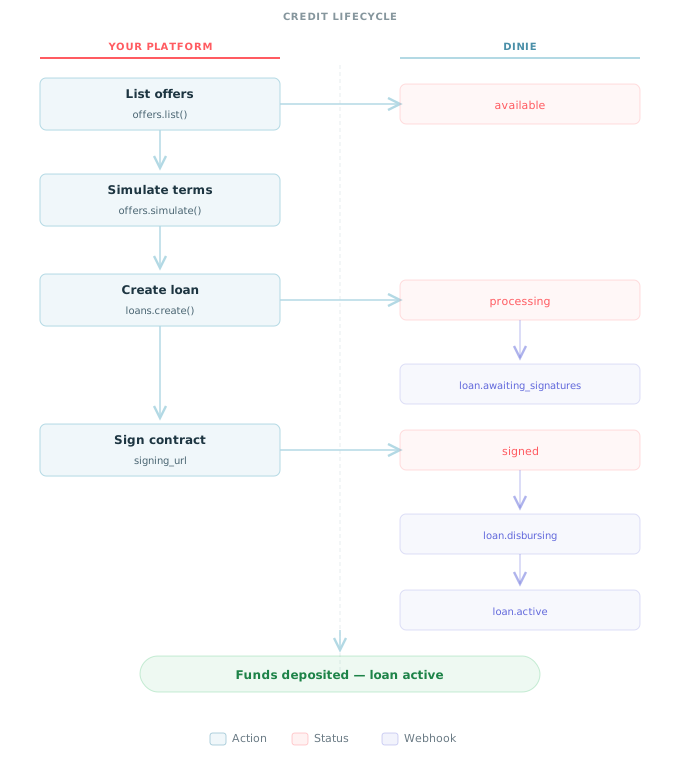
| Status | Description |
|---|---|
available | Offer ready for simulation |
processing | Loan created, generating contract |
awaiting_signatures | CCB contract ready for signing |
signed | Contract signed, awaiting disbursement |
disbursing | Transfer in progress |
active | Funds deposited, payment cycle started |
When the customer opens the app to take out a loan, retrieve the available offers:
const offers = await client.customers.listCreditOffers(
  "cust_550e8400...",
  { status: "available" }
);

const offer = offers.data[0];
console.log(`R$ ${offer.approvedAmount} at ${offer.interestRate}% per month`);
Simulate a loan scenario by providing the desired amount and number of installments. Each call returns a simulation with the calculated terms. The customer can simulate as many times as they want -- only the latest simulation is valid for loan origination.
const simulation = await client.creditOffers.simulate(offer.id, {
  requestedAmount: "25000.00",
  installmentCount: 12,
});

console.log(`${simulation.numberOfInstallments}x of R$ ${simulation.installmentsValue}`);
console.log(`Total: R$ ${simulation.totalLoanAmount} | CET: ${simulation.cetPercentage}% p.a.`);
console.log(`First due date: ${simulation.firstDueDate}`);
The simulation returns installments_value, total_loan_amount, amount (net amount), iof_amount, fees_amount, interest_percentage, and cet_percentage (annualized Total Effective Cost (CET)).
Info: The
installment_countfield depends on the offer. Some offers allow the customer to choose between different terms -- in that case, you can simulate with different values. If the offer defines a fixed term, use theinstallmentsreturned in the offer.
Tip: The SDKs convert monetary values to the language's numeric types. When using HTTP directly, values are strings with 2 decimal places (e.g.,
"25000.00").
When the customer chooses the desired simulation, formalize the loan. The installments, installments_value, and first_due_date fields must match the referenced simulation exactly.
const loan = await client.loans.create({
  creditOfferId: offer.id,
  simulationId: simulation.id,
  installments: simulation.numberOfInstallments,
  installmentsValue: simulation.installmentsValue,
  firstDueDate: simulation.firstDueDate,
});

console.log(loan.id);     // "ln_550e8400..."
console.log(loan.status); // "processing"
Warning: If
installments,installments_value, orfirst_due_datedo not match the simulation values, the request is rejected with asimulation_mismatcherror. Always use the exact values returned by the simulation.
When the loan reaches awaiting_signatures, the signing URL is ready. Present it to the customer:
// In your webhook handler, upon receiving loan.awaiting_signatures:
const loan = await client.loans.retrieve(event.data.id);

if (loan.signingUrl) {
  // Open loan.signingUrl in the customer's browser
  // The customer signs the CCB contract directly on this page
}
After signing, the loan advances automatically: signed -> disbursing -> active. You receive webhooks at each stage.
switch (event.type) {
  case "loan.signed":
    notifyCustomer(event.data.external_id,
      "Contract signed! We are processing the transfer.");
    break;

  case "loan.active":
    notifyCustomer(event.data.external_id,
      `R$ ${event.data.net_amount} has been deposited into your account!`);
    break;
}When your integration is working in sandbox, follow the Going to Production checklist.